
- Introduction
- Step 1: Set Up the Organization
- Step 2: Set Up the Survey Group
- Step 3: Assign Practices
- Step 4: Manage Learners & Reports or Manage Teams & Reports
- Step 5: Edit/Manage Raters
- Step 6: Send Invitation Emails
- Step 7: Accessing Learner Individual Reports or the Group Aggregate Report
- Accessing Reports for Learner Group
- Sorting Surveys
- Ratings Surveys
- Available Main Reports (7 Total)
- Secondary Reports (Available When Criteria Are Met)
- Additional Functions
- Career Path → Career Development
- Career Development → Career Path
- Accessing Reports for KSAT Team-Centric Group
- Sorting Surveys
- Ratings Surveys
Introduction #
This guide provides comprehensive, step-by-step instructions for setting up and managing KSA 360 Survey Groups within TalentTelligent’s Digital Talent Tools platform. It explains how Qualified Administrators (QAs) create Survey Groups, add participants (Learners and Raters), and access KSA 360 Reports.
Administrator Responsibilities #
As the Qualified Administrator, you are responsible for selecting:
- The KSA library
- The type of Survey (Ratings or Sort)
- All participant management, including Learners and Raters
Key considerations when using the Digital Talent Tools platform:
- When creating new Groups, you will determine who manages the Rater(s) and whether Learners will take their own Survey.
- Learners and Raters may be added individually or via file upload.
- If Learners are responsible for managing Raters and/or completing their own Survey, instructions will be emailed to them automatically.
- You control when Survey invitations and reminders are sent (and may send them in stages).
- Reports are accessed through the Manage Learners & Reports area.
- Note: It is possible to copy between a R.A.N.D. KSAP Career Profile and KSAP Career Development.
Step 1: Set Up the Organization #
Menu Path: Digital Talent Tools → Organizations
This step is required once per organization. After an organization is created, you may skip directly to Step 2 when creating additional Groups under the same organization.
Fill in the appropriate organizational details. To remove the TalentTelligent logo from Survey communications, upload your organization’s logo or check the box to remove it.
For more information on setting up an organization, click here.
Step 2: Set Up the Survey Group #
Menu Path Options:
- Digital Talent Tools → 360 Survey Groups → Create 360 Survey Group
- Digital Talent Tools → 360 Survey Groups → Create KSAT Team-Centric Group
Two group types are supported:
- 360 Survey Group: May contain one or many Learners, enabling both individual and group-level reporting.
- KSAT Team-Centric Group: May contain one or many Teams, enabling both individual and group-level Team reports.
Create 360 Survey Group #
Menu Path: Digital Talent Tools → 360 Survey Groups → Create 360 Survey Group
The libraries KSAL, KSAM, KSAI, KSAT-Team Learner, and KSAP-Career Development use a common set of parameters and are all accessible from this menu.
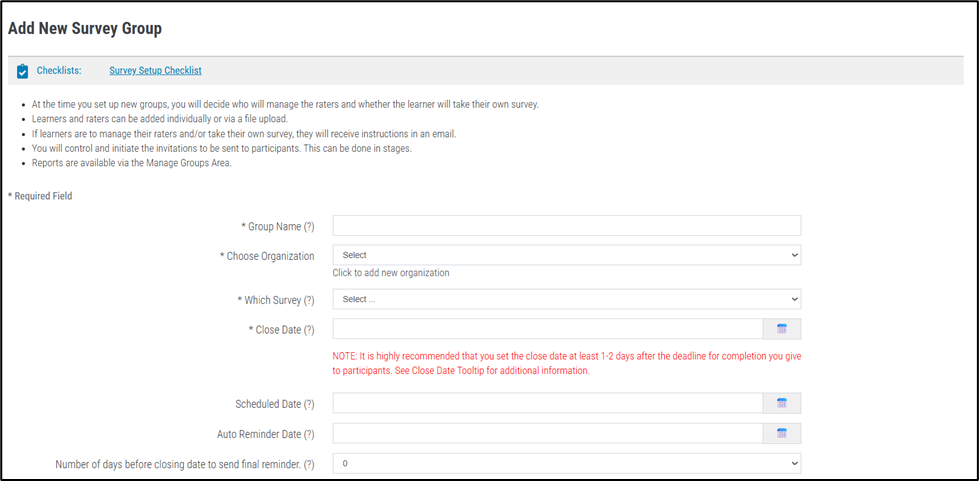
The following mandatory options must be selected:
- *Group Name – Choose a name meaningful to the process.
- *Choose Organization – Select any organization previously created under your profile.
- *Which Survey – Select the appropriate library (KSAL, KSAM, KSAI, or KSAP-Career Development), and specify whether the Survey is a Sort or Ratings Survey.
Sort Surveys #
Participants sort cards into Sorting Piles.
If a Sort Survey is selected, the following are required:
- *Sorting Columns (3 or 5) – Number of available Piles.
- *Sorting Type (Relative or Absolute)
Relative Sort (equal number of Practices in each Pile):
- Participants must distribute Practices evenly.
- This method ranks Practices comparatively.
- Example: All Piles may require exactly two Practice cards.
Absolute Sort (any number of Practices in any Pile):
- Participants may place any number of Practices in any Pile.
- Example: One Pile may contain 5 Practices, another 3, another 1.
Ratings Surveys #
Participants select ratings using radio buttons.
Survey Type Options:
Select to launch or stand-alone 360 survey OR provide learner requested access to Develop-It-Yourself Digital. Learners can request access via a button on their report covers, eliminating administrative burden for the Qualified Administrator.
- Survey
- Survey + Develop-It-Yourself Digital Dashboard
Additional Required Fields #
- *Close Date – The final date participants may access the Survey.
Once the Close Date has passed, the survey is moved to the Manage Archived Groups menu which can be found at Digital Talent Tools → 360 Survey Groups → Manage Archived Groups.
After this date:
- No new participants may be added
- Participants cannot complete the Survey
- The Close Date cannot be edited
Important: The Close Date also governs reminders and system-controlled actions. Timing varies by time zone.
For more information about the Close Date, click here.
- Scheduled Date – Date Survey invitations will be sent automatically (delivered at 5:30 AM).
- Auto Reminder Date – Sends an automatic reminder to all non-completed Learners and Raters on the selected date.
- Number of days before closing date to send final reminder. – Specify a number of days before the Close Date to send one additional automatic reminder.
- *Can Learner Add Raters (Y/N)
- Determines whether Learners may enter their own Raters.
- *Can Learner Take Survey (Y/N)
- Indicates whether the Learner may complete a self-Survey.
- Important: The Learner must not be added as their own Rater. Select “Y” here instead.
- Optional custom Email Message to include in Learners/Raters Email
- A custom message may be added to invitations, reminders, and re-sent emails.
- These messages can be edited at any time.
Survey Email Invitation Options #
Two options are available:
- Send A Survey Link in Invitation Email
- Participants click directly into the Survey.
- Send A Survey Code (URL + code) in Invitation Email
- Participants go to the URL and enter the provided code.
- Useful for organizations with security settings that block hyperlinks.
Note: TalentTelligent can work directly with client IT departments to determine the most appropriate delivery method. Test emails can be sent before launching a Survey
Completing the Group Setup #
Once all required information has been entered:
- Click Add Group.
- Click Continue and Save.
- To assign Practices immediately, select Continue to Assign Practices.
After saving, all Group management is completed via the View 360 Survey Groups grid:
Menu Path: Digital Talent Tools → 360 Survey Groups
Both 360 Survey Groups and KSAT Team-Centric Groups appear in this view.
Create KSAT Team-Centric Group #
Menu Path: Digital Talent Tools → 360 Survey Groups → Create KSAT Team-Centric Group
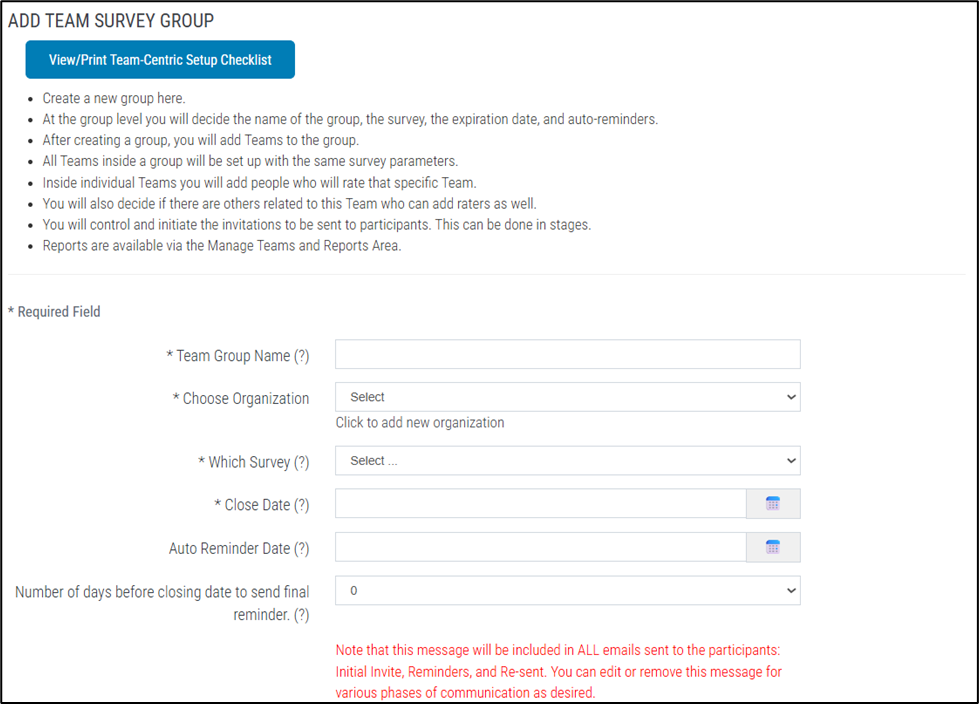
The following mandatory options must be selected:
- *Team Group Name – Enter the name of the Team-Centric Group.
- *Choose Organization – Select an organization already created under your profile.
- *Which Survey – Choose Team-Centric 360 Survey – Sort Style or Team-Centric 360 Survey – Ratings Style.
Sort Surveys #
Participants sort cards into Sorting Piles.
If selecting a Sort Survey:
- *Sorting Columns (3 or 5) – Number of available Piles.
- *Sorting Type (Relative or Absolute)
Relative and Absolute Sort options function exactly as described for Learner Groups.
Ratings Surveys #
Participants respond using radio buttons.
Note: The KSAT Team-Centric setup does not offer the “Survey + Develop-It-Yourself Digital Dashboard” option.
Additional Required Fields #
- *Close Date – Determines access cutoff and cannot be modified afterward.
Once the close date has passed, the survey is moved to the Manage Archived Groups menu which can be found at Digital Talent Tools → 360 Survey Groups → Manage Archived Groups.
For more information, click here.
Important: The Close Date governs reminders and other timed features. Actual timing may vary by time zone.
- Auto-reminder Date – Sends reminders to Raters who have not completed their Survey.
- Final Reminder Timing – Sends a reminder specified number of days before the Close Date.
- *Survey Email Invitation Option
- Send a direct Survey link
- Send a URL + Survey code
- Recommended where active links may be blocked
Note: TalentTelligent can consult with company IT or run delivery tests if needed.
Completing the KSAT Team-Centric Setup #
After all required fields are completed:
- Select the Add Group button.
- Click Continue and Save.
All additional management occurs through the View 360 Survey Groups grid:
Menu Path: Digital Talent Tools → 360 Survey Groups
All Survey Groups, Learners and Team-Centric, will appear in this view.
Step 3: Assign Practices #
Menu Path: Digital Talent Tools → 360 Survey Groups → Assign Practices
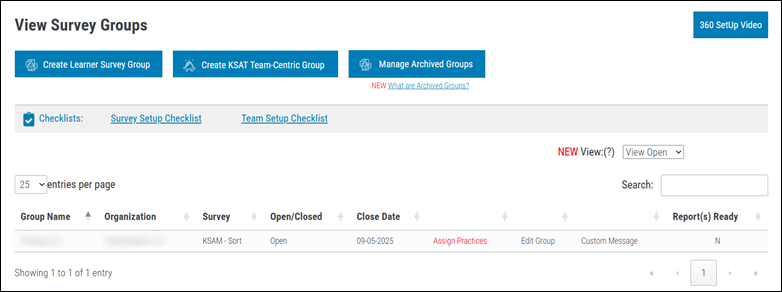
This step applies to both Learner Groups and KSAT Team-Centric Groups.
After saving Group details:
- Click Assign Practices in the Group Grid.
- In the pop-up window, select Continue to Assign Practices.
- This opens the page where Practices are selected.
Practice Selection Options #
You may choose one of three methods:
- Option 1 – Use the standard list
- Automatically selects all Practices
- The list cannot be modified
- Option 2 – Use an existing profile
- Recalls previously saved Practice profiles
- You may modify the selection afterward
- Option 3 – Create a new Practice profile
- Displays all available Practices unselected
- Allows full customization
- Includes a Select All button for convenience
Note: KSAP Career Path requires all Practices. A future copy from Career Development → Career Path will be allowed only if the original Career Development Survey included all Practices.
Finalizing Practices #
Click the Confirm Practices button to complete the selection.
You will be redirected to the View Survey Groups grid, where a confirmation message appears: “Practices assigned to Group”
Important:
- Practices may be added or removed before saving.
- After saving, Practices cannot be changed.
- To modify them, you must create a new Group.
- Groups may be deleted only if they have no Learners.
Group Grid Updates #
Once Practices are assigned, the View 360 Survey Groups Grid will update:
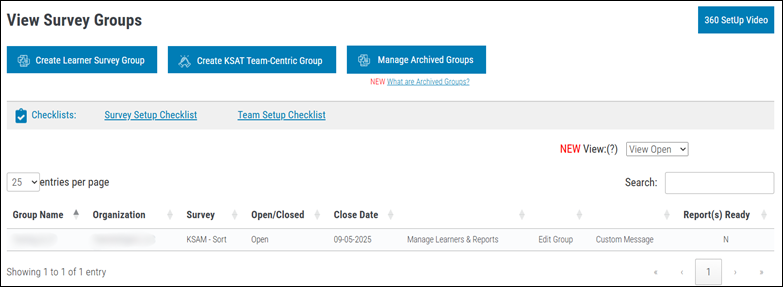
- For a 360 Survey Group, the grid will display Manage Learners & Reports.
- For a KSAT Team-Centric Group, the grid will look similar but will display Manage Teams & Reports instead of Manage Learners & Reports.
Additional Grid Features #
Each Group’s View Survey Groups Grid section will change as steps are completed.
- Edit Group – Before and after assigning Practices, you may edit any information entered in Step 2.
- Save changes by clicking Update Group at the bottom of the screen.
- Groups may be deleted using Delete Group until a Learner (or a Team) has been added.
- Custom Messages – Hover over the Custom Message field to preview the email message assigned to that Group.
- If no custom message exists, the pop-up will indicate that.
Step 4: Manage Learners & Reports or Manage Teams & Reports #
Menu Path: Digital Talent Tools → 360 Survey Groups → Manage Learners & Reports / Manage Teams & Reports
Survey Credits must be purchased before Learners can be assigned to a Group. Each Learner and each Team uses one Survey Credit.
Purchases can be made through the Leadership Library on the Purchase → View/Purchase webpage.
The Click To Purchase Surveys button will also take you directly to this page.
Manage Learners & Reports for Learner Survey Group #
Menu Path: Digital Talent Tools → 360 Survey Groups → Manage Learners & Reports
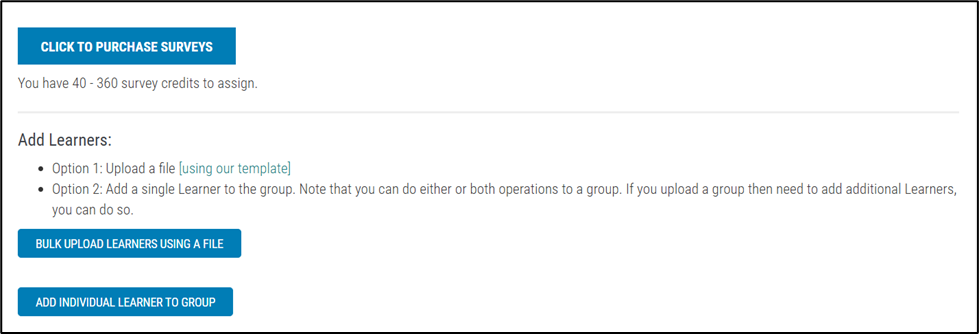
For each Learner, the following information is required:
- First Name
- Last Name
- Email Address
You may add Learners using either option below:
- Bulk Upload Learners Using a File – Complete the .csv template and upload it. (Get the Learner upload template.)
- Add Individual Learner to Group – Add a single Learner manually.
Note: Both methods may be used within the same Group. The QA controls when Learners receive notifications.
Special Conditions for KSAP-Career Path #
Career Path Candidates do not take their own Survey. Their email is entered for identification only, and they do not receive system emails.
Additional Details #
Available actions will vary based on the learner’s rating status and overall Group status.
The QA controls the timing of all initial Survey invitations.
Before the Close Date, the QA may:
- Edit or add Learners and Raters
- Re-send the original email
- Send reminder emails
To generate a report, at least one response must be recorded. When reporting criteria are met, a Report button will appear.
The Raters Complete column shows how many Raters have completed the Survey (not including the Learner).
After the Close Date has passed, the only available action is report generation, provided all necessary criteria have been met.
Manage Teams & Reports for KSAT Team-Centric Group #
Menu Path: Digital Talent Tools → 360 Survey Groups → Manage Teams & Reports
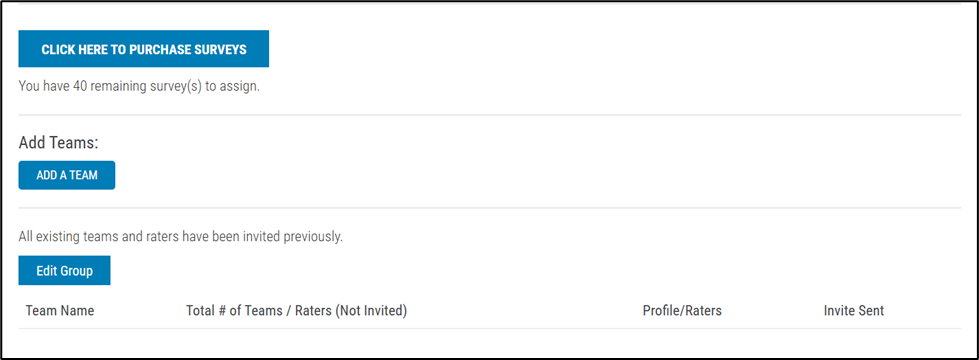
To add a Team:
- Select the Add a Team button.
- Enter the name in the *Team Name text box.
- Click Save Team.
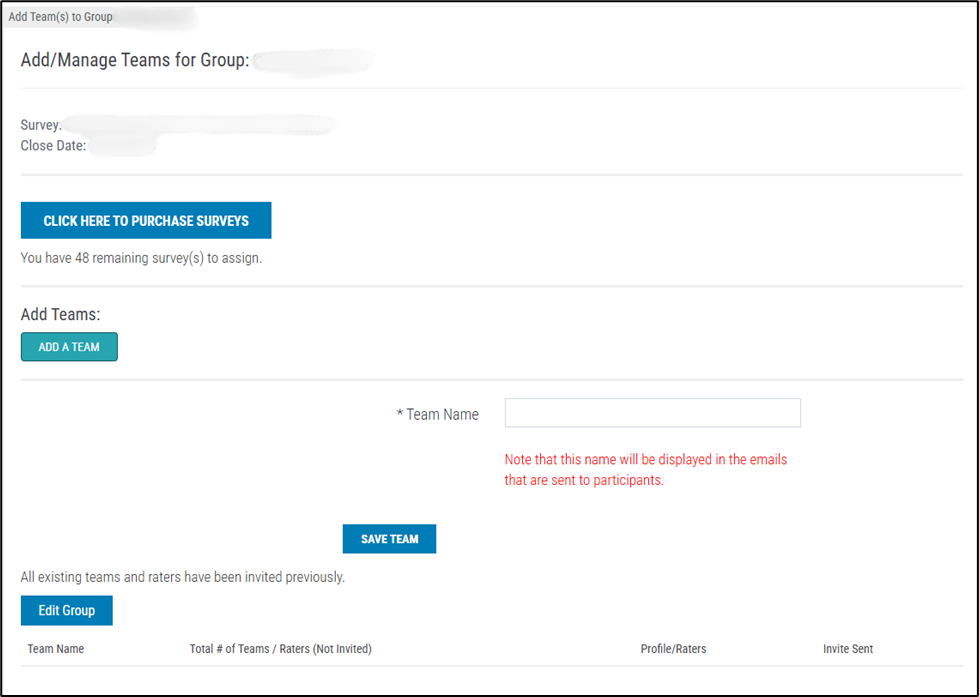
The new Team will then appear in the View Teams Grid, where you can view the total number of Teams and Raters assigned to the KSAT Team-Centric Group.
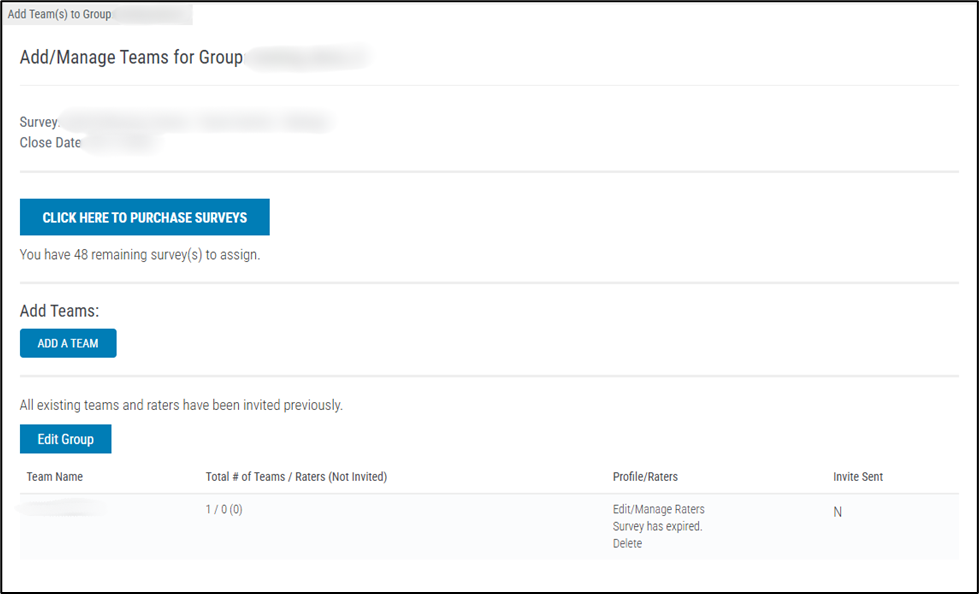
Step 5: Edit/Manage Raters #
Edit/Manage Raters for Learner Survey Group #
Menu Path: Digital Talent Tools → 360 Survey Groups → Manage Learners & Reports → Edit/Manage Raters
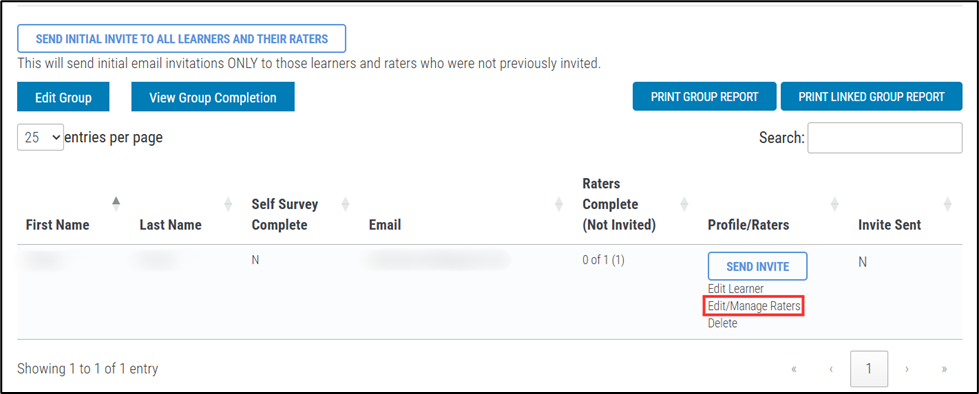
Once Learners are added, Raters can be added either by the QA or by the Learner (depending on the settings chosen during Group creation).
The QA controls the timing of all initial Rater invitations. The QA may also choose to send initial invitations to the entire Survey Group from the Add/Manage Learners page.
Whether the Learner can add their own Raters was determined during Group setup in Step 1.
If Learners are permitted to enter their own Raters, they may edit their entries, however, only the QA can send Rater invitations.
Adding Raters #
To add Raters:
- Select Manage Learners & Reports in the View Survey Groups Grid.
- Choose Edit/Manage Raters for the Learner where you want to add Rater(s).
Raters require:
- First Name
- Last Name
- Rater Type
You may add Raters using either option:
- Bulk Upload Raters – Use the .csv upload template.
- Add Individual Rater – Add one Rater manually.
These options are visible in the Learner’s View Raters Grid.
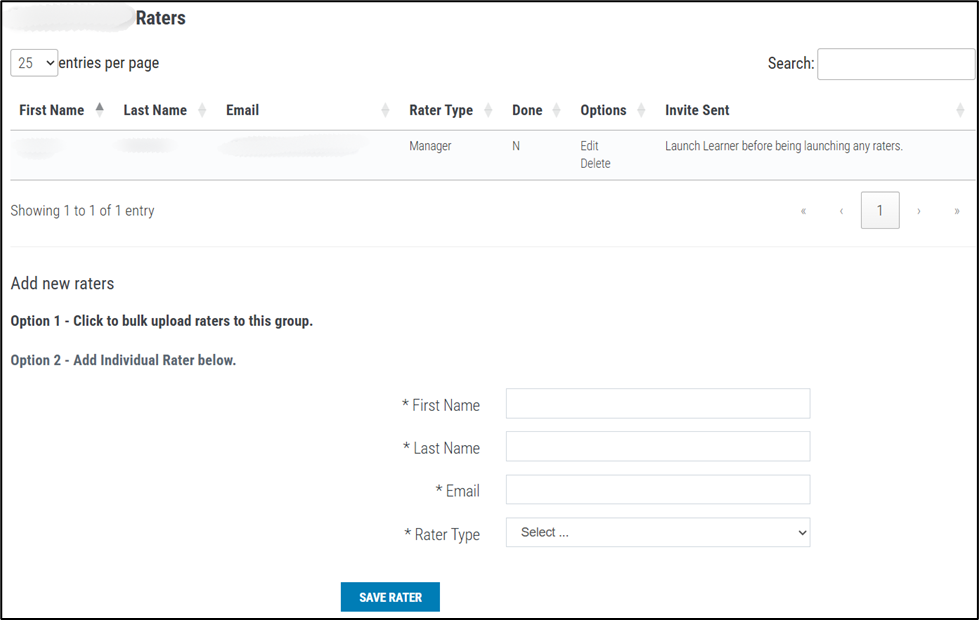
Note: When adding an individual Rater, click Save Rater at the bottom of the page. The Rater will then appear in the Learner’s Raters Grid.
Edit/Manage Raters for KSAT Team-Centric Group #
Menu Path: Digital Talent Tools → 360 Survey Groups → Manage Teams & Reports → Edit/Manage Raters
Adding Raters to a Team-Centric Group functions the same way as in a Learner Survey Group, with one exception:
- Bulk upload is not available for Team-Centric Raters.
Step 6: Send Invitation Emails #
Send Invitation Emails for Learner Survey Group #
Menu Path: Digital Talent Tools → 360 Survey Groups → Manage Learners & Reports
Click: Send Initial Invite To All Learners and Their Raters
You may also invite participants selectively:
- At the Learner level
- At the individual Rater level
Important: Raters cannot be invited until their Learner has been invited. When a Learner is invited, all of their assigned Raters are automatically invited.
Learners and Raters may be added to the Survey Group at any time.
After invitations have been sent, the page will update to show invitation status.
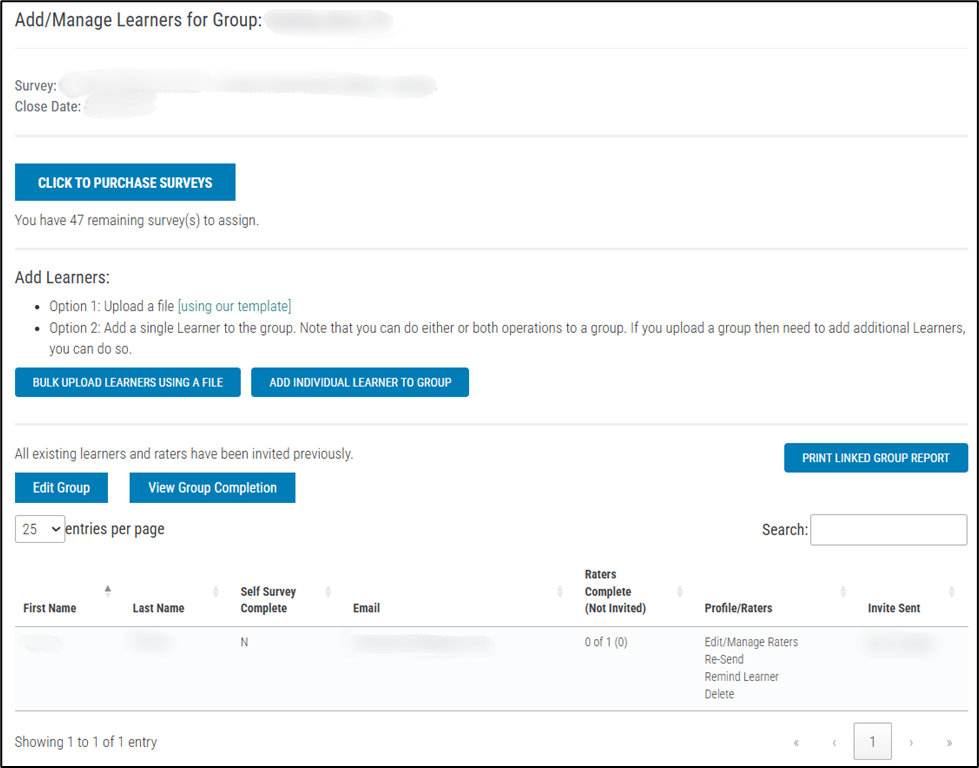
You may also:
- Send reminder emails
- Re-send the original invitation (These will be sent only to participants who have not completed the Survey.)
You may continue to edit/manage the Learner’s Raters even after the Learner has completed their Survey.
The View Group Completion button shows:
- Number invited
- Number completed
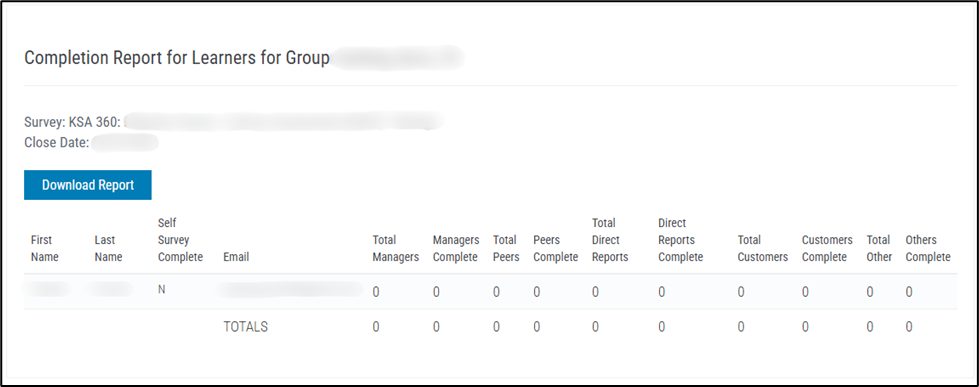
A Completion Report may be downloaded as a .csv file using the Download Report button.
Send Invitation Emails for KSAT Team-Centric Group #
Menu Path: Digital Talent Tools → 360 Survey Groups → Manage Teams & Reports
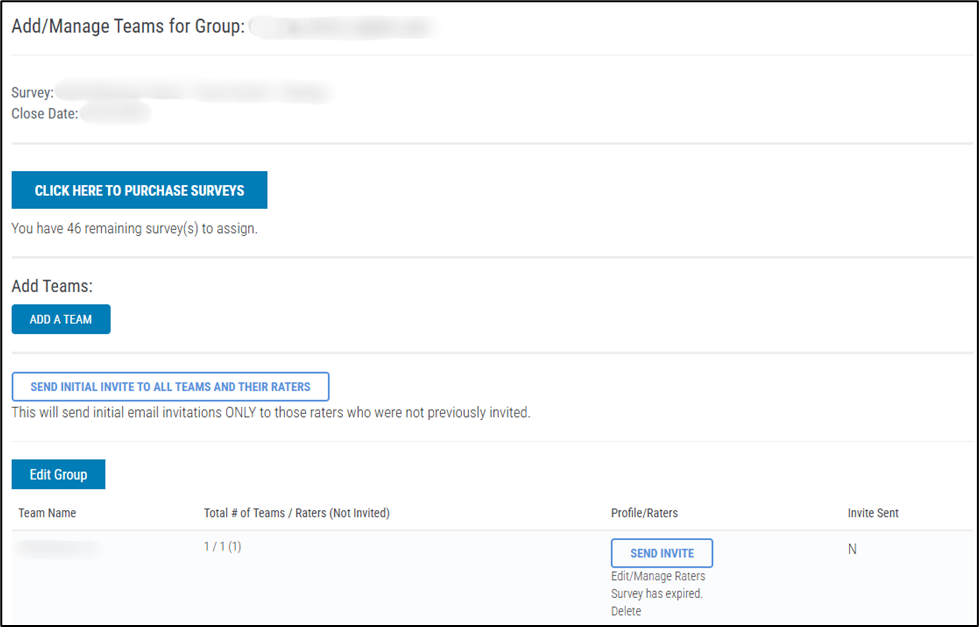
As with Learner Groups, you may invite:
- All Teams and their Raters at once using Send Initial Invite to All Teams and Their Raters
- Only the Raters for a specific Team using the Send Invite button
New Raters may still be added after the invitations have been sent.
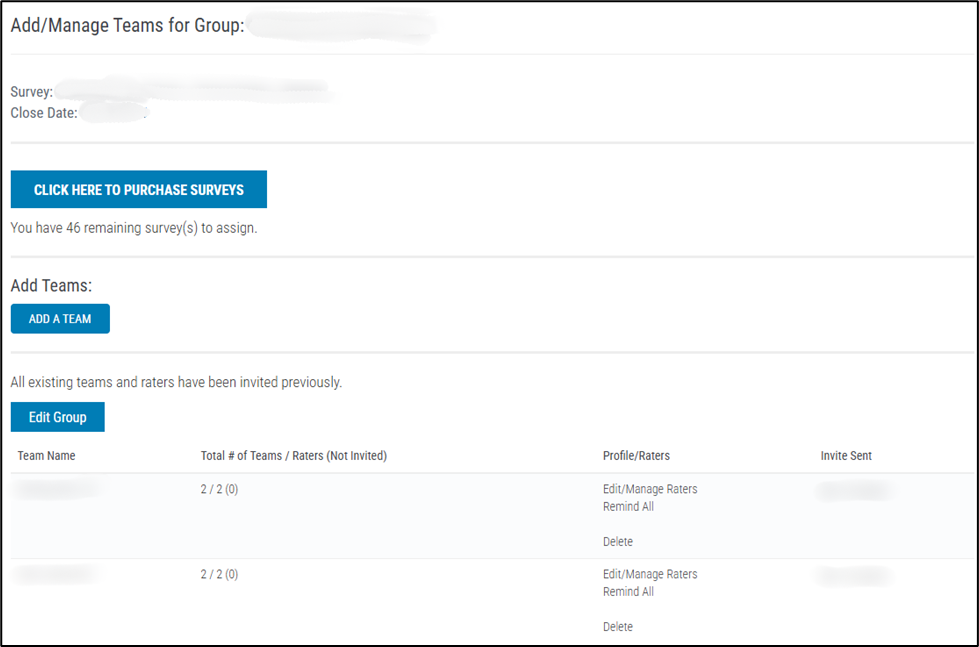
After all Teams have been invited, the Add/Manage Teams for Group page updates to reflect this.
Step 7: Accessing Learner Individual Reports or the Group Aggregate Report #
Accessing Reports for Learner Group #
Menu Path: Digital Talent Tools → 360 Survey Groups → Manage Learners & Reports
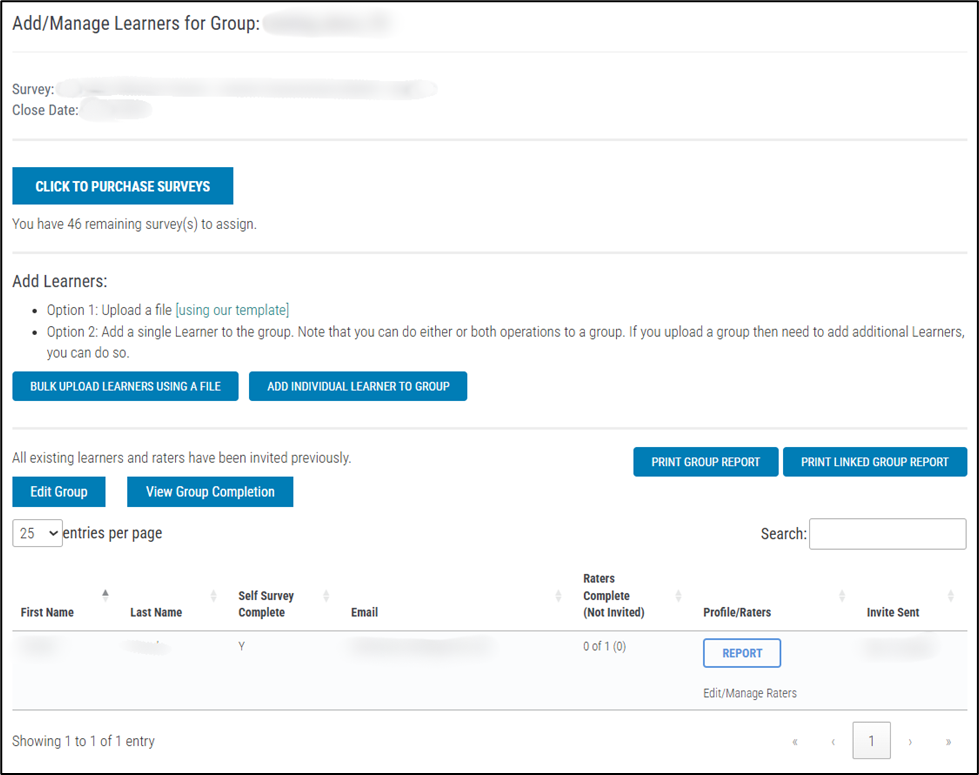
You may print a Linked Group Report when specific criteria are met:
Sorting Surveys #
Groups can be linked if they share:
- The same Library
- The same number of Sorting Columns
- The same Sorting Type (Relative or Absolute)
Ratings Surveys #
Groups can be linked if:
- They use the same Library
- They use the same set of Practices
These same rules apply to KSAT Team-Centric Linked Group Reports.
When an individual Learner report is available, a Report button will appear in the Profile/Raters column of that Learner’s row.
You may also access the Group Aggregate Report using the Print Group Report button. Multiple reporting options will be available.
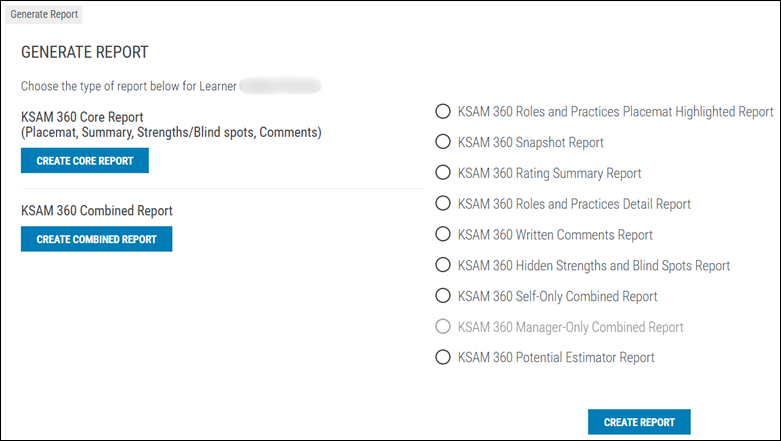
Available Main Reports (7 Total) #
- 360 Core Report – Combines the Placemat Highlight, Summary Rating, Hidden Strengths & Blind Spots, and Comments Reports.
- 360 Combined Report – Includes all Core Report components plus the Roles & Practices Detail Report.
- 360 Roles (or Drivers/Markers) and Practices Placemat Highlighted Report – Shows highest and lowest overall ratings.
- 360 Snapshot Report – Provides Role rankings and Practice breakdowns by Domain.
- 360 Rating Summary Report – Summarizes highest and lowest Role and Practice ratings.
- 360 Roles (or Drivers/Markers) and Practices Detail Report – Shows all numerical data (excluding written comments) with all averages across Groups.
- 360 Written Comments Report – Displays verbatim comments without identifying the commenter.
- 360 Potential Estimator Report – Available only for KSAM, KSAL, and KSAI. Provides:
- Total Potential Estimate
- Role Estimate
- Practice Estimate
Secondary Reports (Available When Criteria Are Met) #
- 360 Manager-Only Combined Report – Shows manager-only ratings. (Requires at least one manager response.)
- 360 Self-Only Combined Report – Shows self-ratings only. (Requires at least one Learner response.)
Additional Functions #
Copy KSAP Career Path to/from Career Development
You may copy:
Career Path → Career Development #
- Copies the Candidate and any completed Rater submissions
- Career Path uses only Manager ratings
- After copying, the Candidate becomes a Learner and may be invited to complete a self-Survey (optional)
Career Development → Career Path #
- Copies only the Learner and completed Manager ratings
- Allowed only if all Practices were used in the original Career Development Survey
When copied to Career Path:
- Raters must answer three additional Career Path-specific questions
- These Raters automatically receive an email providing access to these questions
(See the full parameters of this copy process here.)
Accessing Reports for KSAT Team-Centric Group #
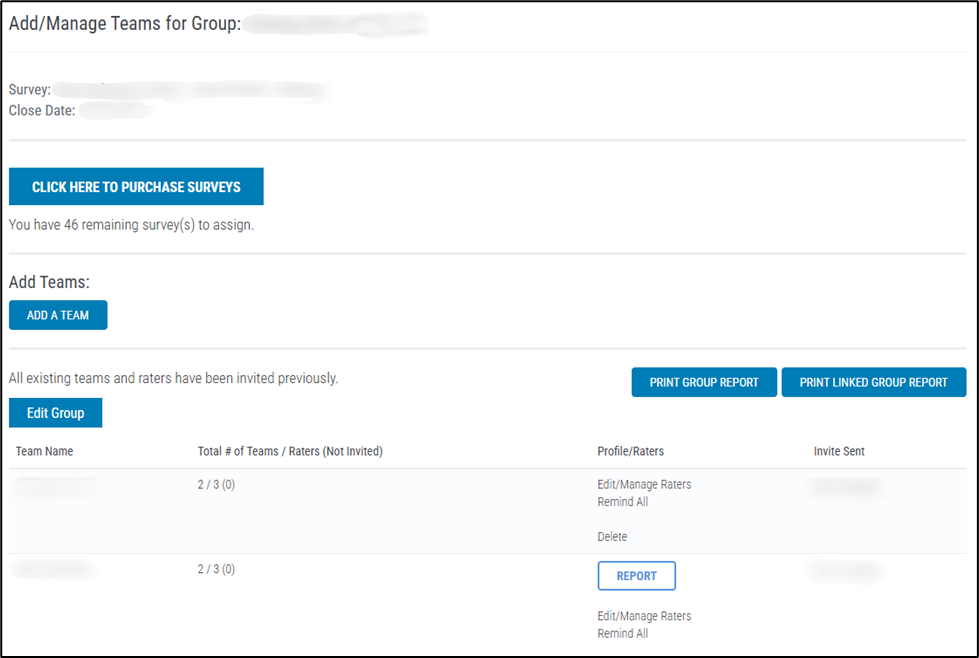
When a Team’s report is ready, a Report button will appear in that Team’s row in the View Teams Grid.
As with Learner Groups, Linked Group Reports can be printed if the following criteria match:
Sorting Surveys #
- Same Library
- Same number of Sorting Columns
- Same Sorting Type (Relative or Absolute)
Ratings Surveys #
- Same Library
- Same Practices selected
After selecting the Report button, the available report options will be displayed:
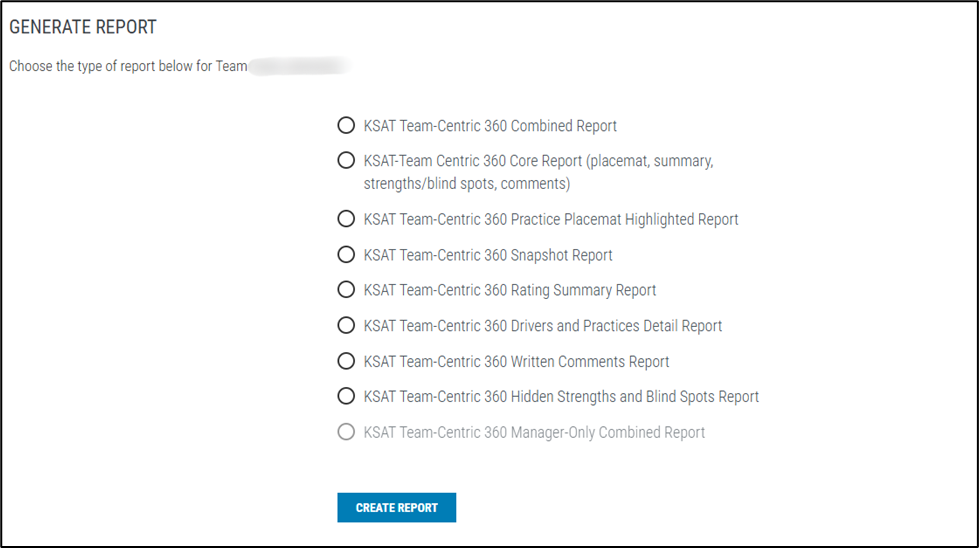
Note: The KSAT Team-Centric 360 Manager-Only Combined Report appears only when at least one manager has responded.