
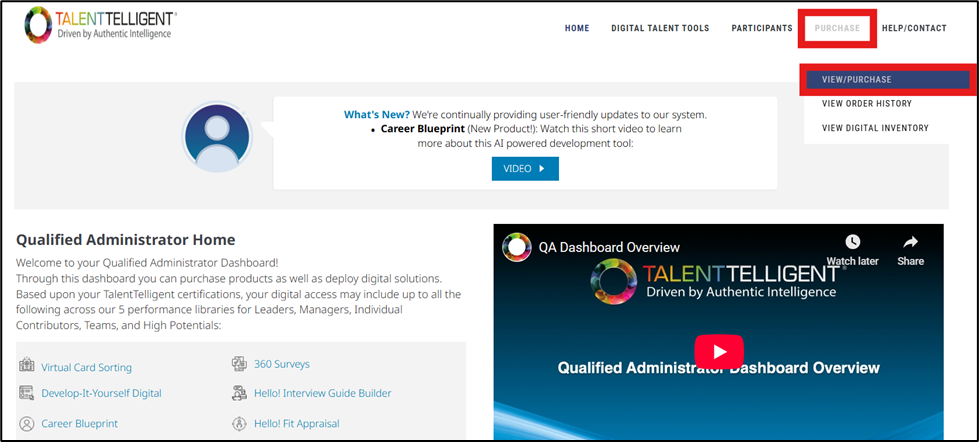
From the Qualified Administrator Home, go to Purchase → View/Purchase.
Page Overview #
The View/Purchase page is the central portal to explore and purchase the full range of TalentTelligent KSA Tools. This area functions like a bookstore, allowing you to add items to a virtual cart and complete checkout using either a credit card or a pre-authorized purchase code.
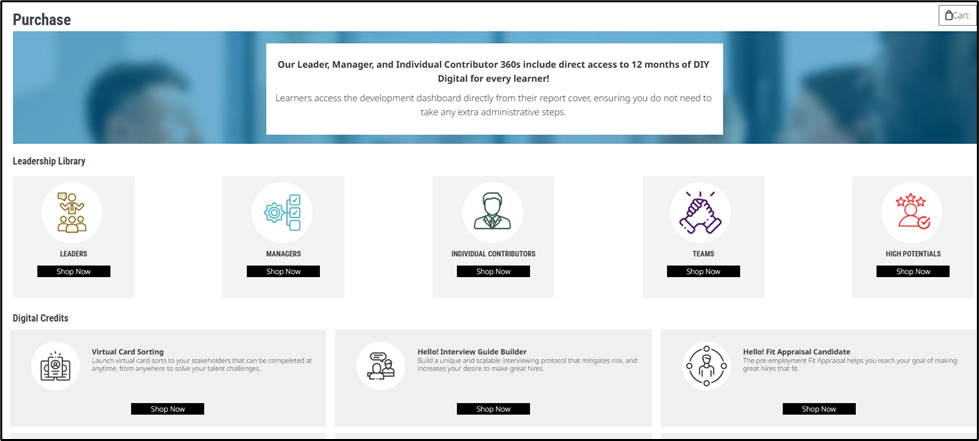
Leadership Library #
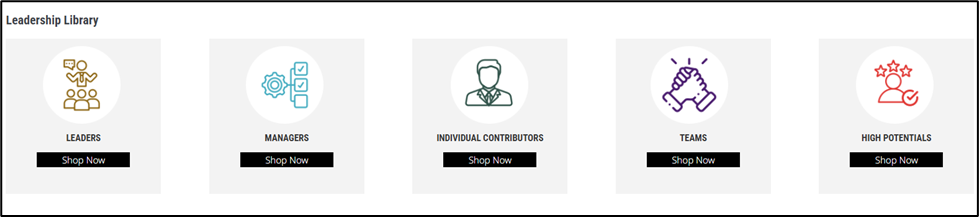
Displays the five performance libraries available for purchase. Each library displays a brief description and includes a Shop Now button to begin the purchase process:
- Leaders
- Managers
- Individual Contributors
- Teams
- High Potentials
When selecting any of these libraries (for example, Leaders), a dedicated product page will open.

This page includes:
- A banner describing the purpose of the selected library.
- Product categories such as Surveys, Books & Cards, Placemats, and Posters & Tally Sheets.
- Products buttons under each category for exploring all items in that category.
- Individual product listings showing a description, price, quantity field, and Add to Cart button.
Digital Credits #
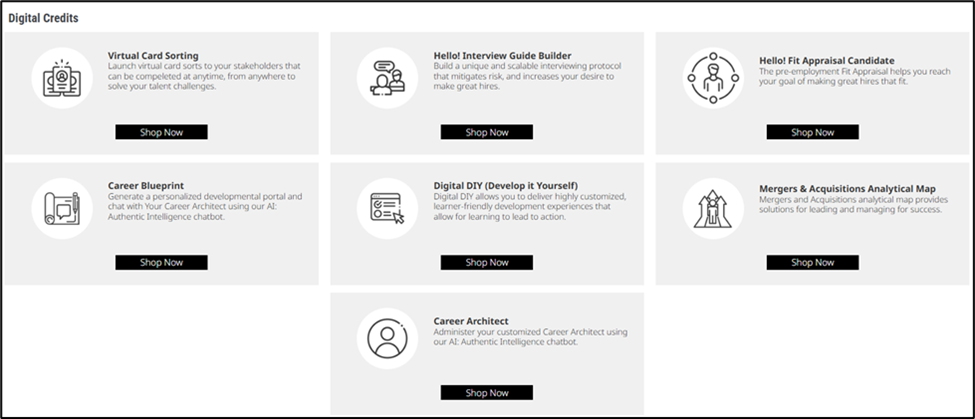
Displays all available digital tools that can be purchased individually. Each tool displays a brief description and includes a Shop Now button to proceed with purchasing credits:
- Virtual Card Sorting
- Hello! Interview Guide Builder
- Hello! Fit Appraisal Candidate
- Career Blueprint
- Digital DIY (Develop-It-Yourself)
- Mergers & Acquisitions Analytical Map
- Career Architect
When selecting any Digital Credit product (for example, Virtual Card Sorting), a dedicated digital product page will open.

This page includes:
- A banner with the product icon and description explaining how the digital tool is used.
- A list of available credit options, each with:
- A credit tier or unit type (such as per seat, per learner, per library, or per candidate)
- The price
- A quantity field
- An Add to Cart button
Some Digital Credit products use tiered pricing, meaning the cost changes depending on how many units you purchase. Depending on the offering, this may appear as price per seat, per learner, per library, or per candidate. Products like Virtual Card Sorting include multiple price levels based on the volume purchased.
Other Digital Credit products have a single, base price, where the cost does not change with quantity. These products display one price and one quantity field.
Checkout #
Accessing the Cart or Checkout Options #
Once you have added items to your cart, three options will appear at the top of the screen:
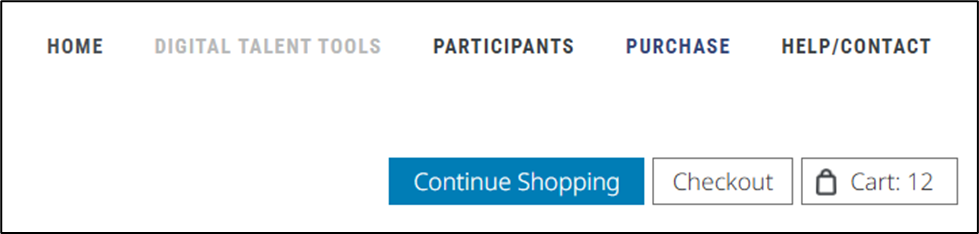
- Continue Shopping – Returns you to the product catalog.
- Checkout – Opens the order review screen.
- Cart – Also opens the same order review screen.
Both Checkout and Cart bring you to the same page where your order is displayed.
Reviewing Your Cart #
When selecting either Cart or Checkout, you will see a page similar to the example provided below.
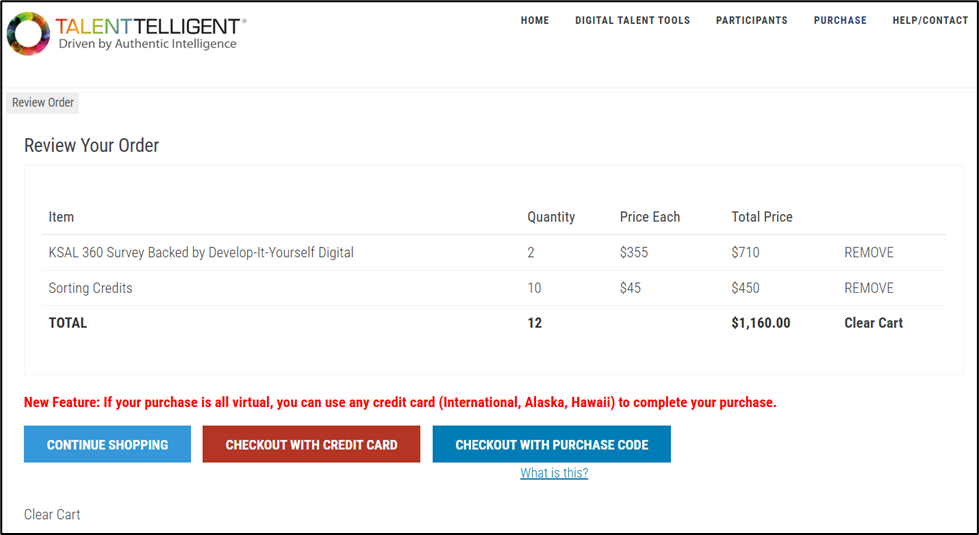
This page displays:
- Product names
- Quantity
- Price per unit (including any tiered or unit-based pricing)
- Total price per item
- Overall order total
On this screen, you will also see the following action buttons:
- Remove – Deletes an individual product from your cart
- Clear Cart – Empties all items from the cart at once
- Continue Shopping – Takes you back to browsing products
- Checkout with Credit Card – Begins the credit card payment process
- Checkout with Purchase Code – Begins the purchase code payment process
A message will also appear noting that virtual-only purchases can be completed using any credit card, including international cards.
Proceeding to Checkout #
After confirming your order, choose one of the checkout methods:
- Checkout with Credit Card
- Checkout with Purchase Code
Each option leads to a different payment screen.
Checkout with Credit Card #
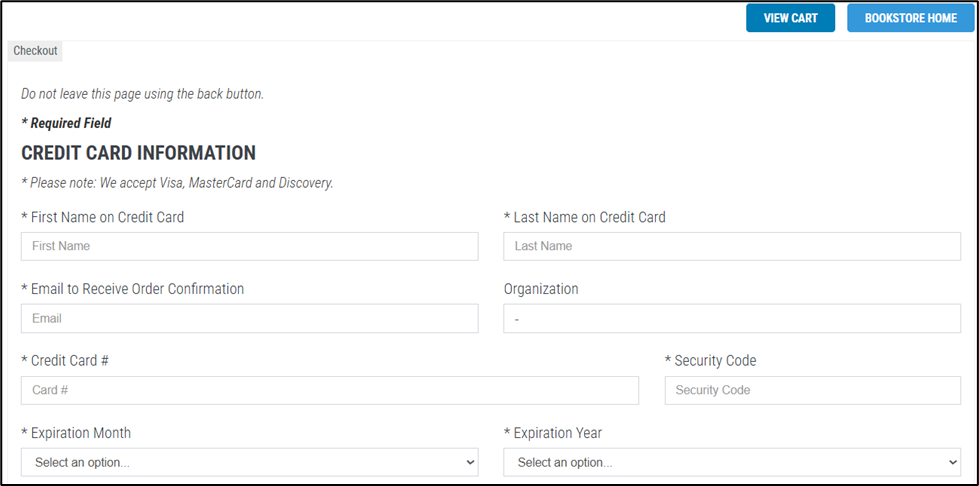
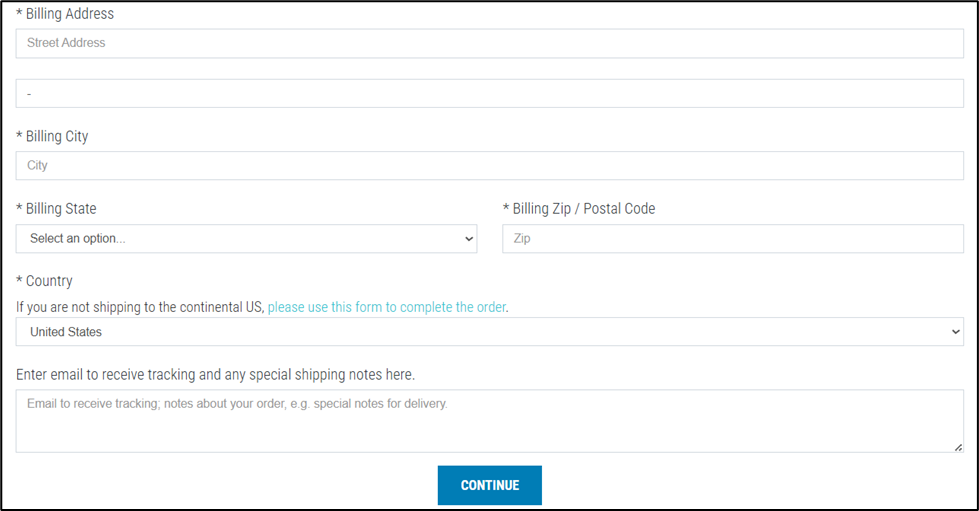
As shown above, selecting Checkout with Credit Card opens a payment form requiring:
- First and last name
- Email address
- Credit card number
- Security code
- Expiration month and year
- Billing address, including city, state, and postal code
- Country
- Optional shipping or tracking notes (used mainly for physical items)
After entering all required information, select Continue. You will then be taken directly to a final review page.
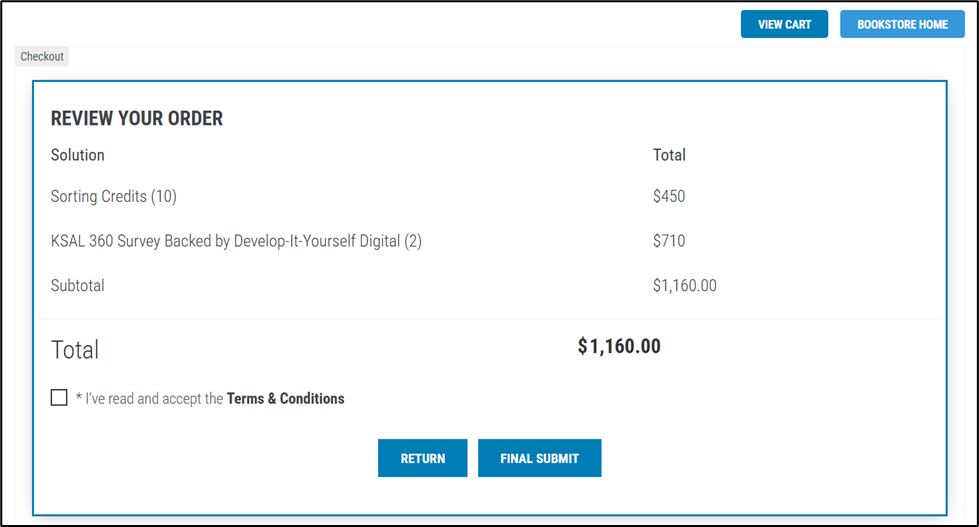
On this final page, you will see:
- A list of all items in your order
- Quantities
- Individual product totals
- Subtotal and final total
To complete your purchase:
- Check the box to confirm you have read and accept the Terms & Conditions
- Select Final Submit to finish the transaction
Checkout with Purchase Code #
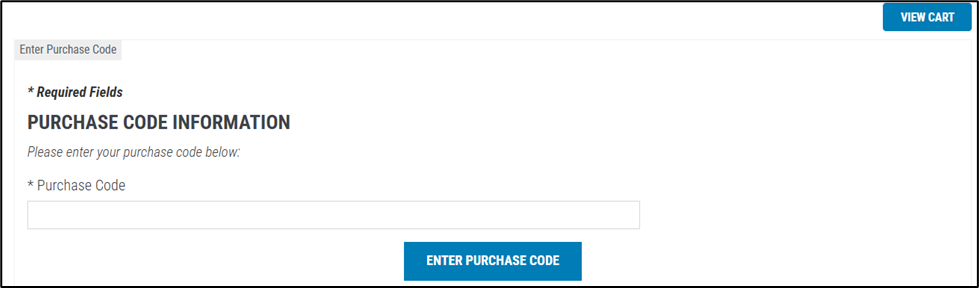
Selecting Checkout with Purchase Code opens a simple screen where you enter your organization-issued Purchase Code. Enter the code and select Enter Purchase Code to continue.
After the code is successfully applied, you will be taken directly to the next page.
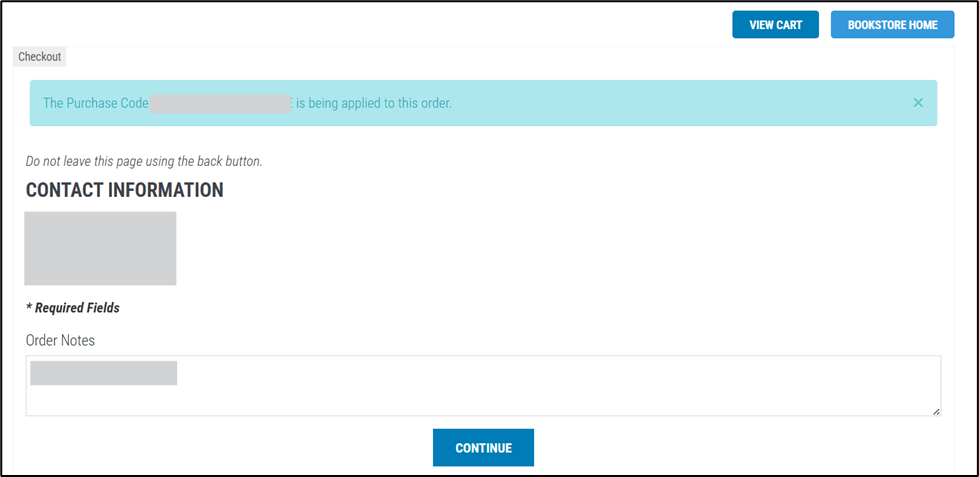
This screen includes:
- A confirmation banner showing that the Purchase Code is being applied to the order
- A Contact Information section displaying your saved account details
- An Order Notes field where you can add any additional instructions or comments
- A Continue button to move forward
After selecting Continue, you will reach the final review page.
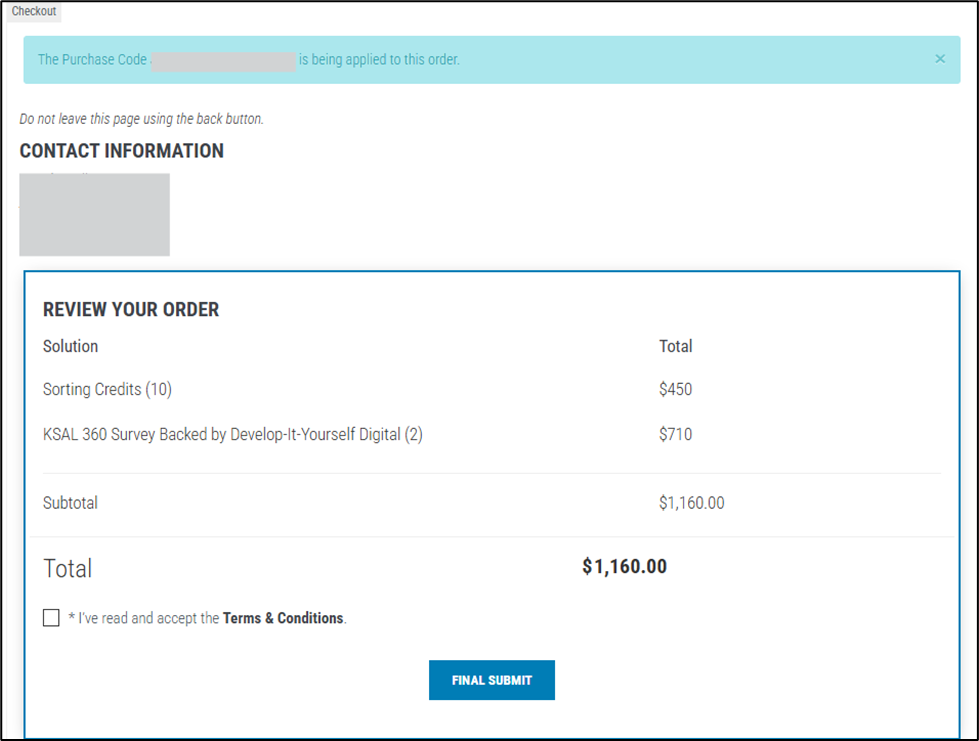
This page displays:
- A summary of all products in your order
- Quantities
- Individual totals
- Subtotal and final total
To complete your purchase:
- Check the box to confirm you have read and accept the Terms & Conditions
- Select Final Submit to finalize the transaction
After Purchase: Viewing Your Digital Inventory #
After your order is completed, any Digital Credits you purchased will be added to your account automatically.
To learn how to view and manage them, click here to open the documentation for the View Digital Inventory page.
You may also go to Purchase → View Order History from the QA Home to keep track of all past orders. Every order you submit will appear there.
Supporting & Additional Options #
At the bottom of the page, you’ll find helpful resources and contact options:
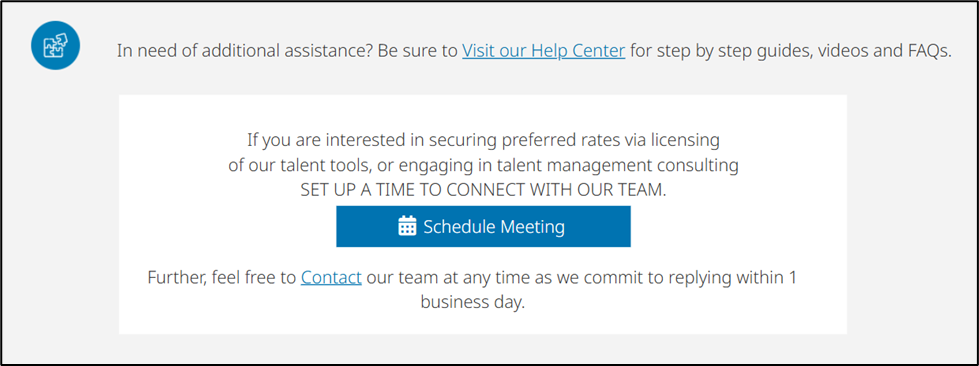
- Visit our Help Center – Access step-by-step guides, videos, and FAQs.
- Schedule Meeting – Connect with the TalentTelligent team to discuss licensing options or consulting support.
- Contact – Reach out directly to customer support for purchase or payment assistance (responses are typically provided within one business day).