
Table of Contents
Every survey group or virtual sort group must be associated with an Organization. Organizations provide a way to group data and view results across multiple divisions or groups while maintaining overall structure and consistency.
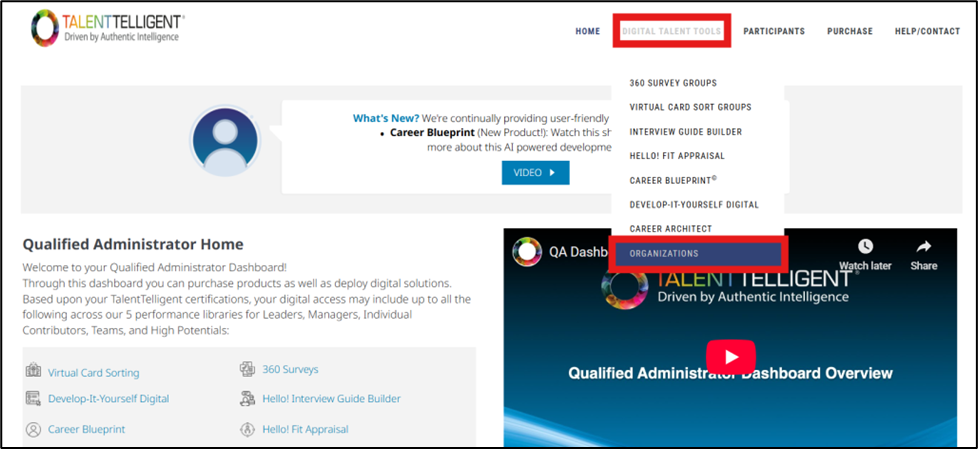
To manage or create Organizations, navigate to Digital Talent Tools → Organizations. You can create as many Organizations under your account as needed to support your surveys and virtual sorts.
Add an Organization #
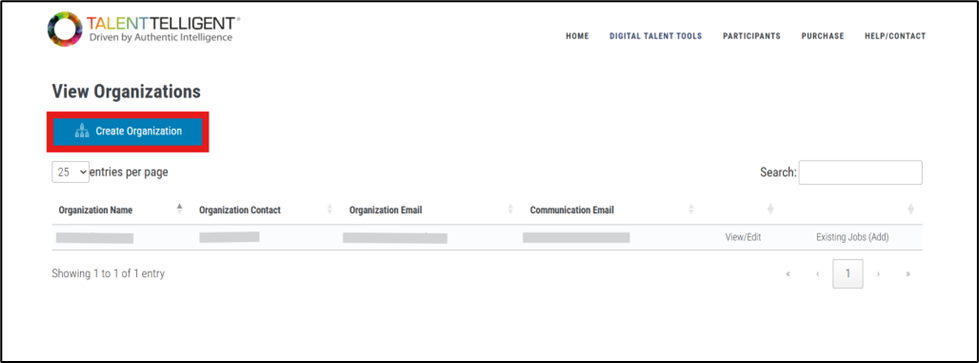
Menu Path: Digital Talent Tools → Organizations → Create Organization.
Instructions:
- Click Create Organization
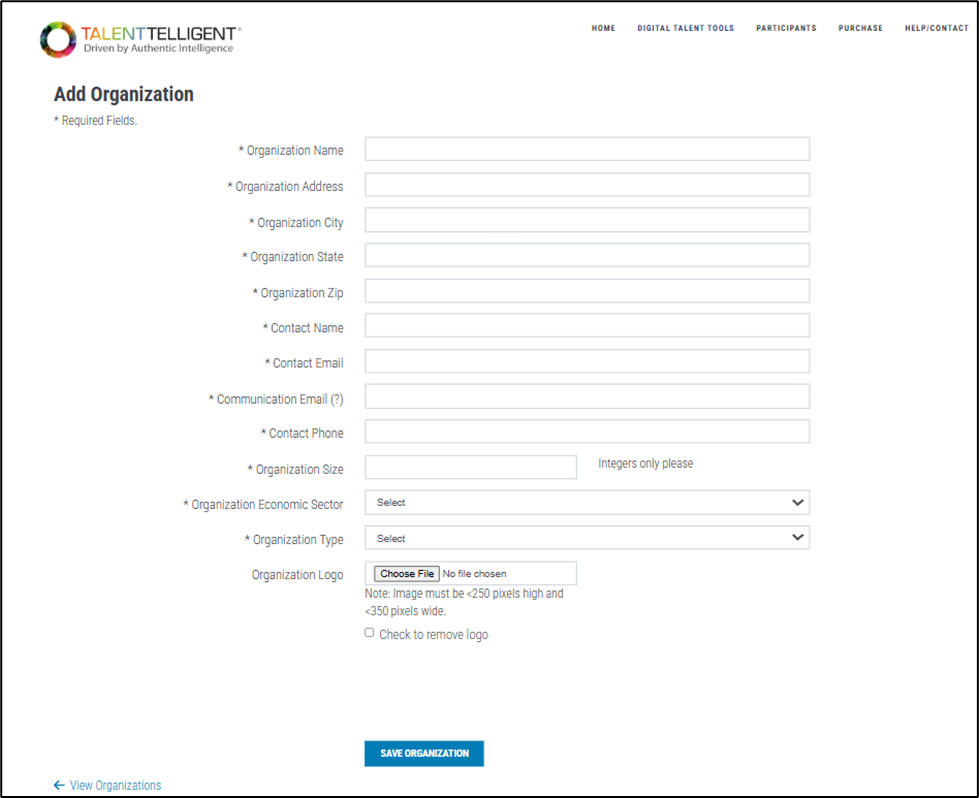
- Fill out all required fields in the form:
- Organization Name* – Enter the official name of the Organization.
- Organization Address* – Street address of the Organization.
- Organization City* – City where the Organization is located.
- Organization State* – State or region of the Organization.
- Organization Zip* – Postal code of the Organization.
- Contact Name* – Main point of contact for this Organization.
- Contact Email* – Email for the primary contact.
- Communication Email* – Email for system notifications.
- Contact Phone* – Phone number for the primary contact.
- Organization Size* – Total number of employees (integers only).
- Organization Economic Sector* – Select from the dropdown list.
- Organization Type* – Select from the dropdown list.
- Organization Logo (Optional) – Upload an image to display on surveys, virtual sorts, and reports.
- Image requirements: Maximum 250 pixels high and 350 pixels wide.
- If no logo is uploaded, the TalentTelligent logo will be displayed.
- To remove a previously uploaded logo, check “Check to remove logo.”
- After creating the Organization, any new survey or virtual sort group will prompt you to either:
- Select an existing Organization, or
- Add a new Organization.
Edit an Organization #
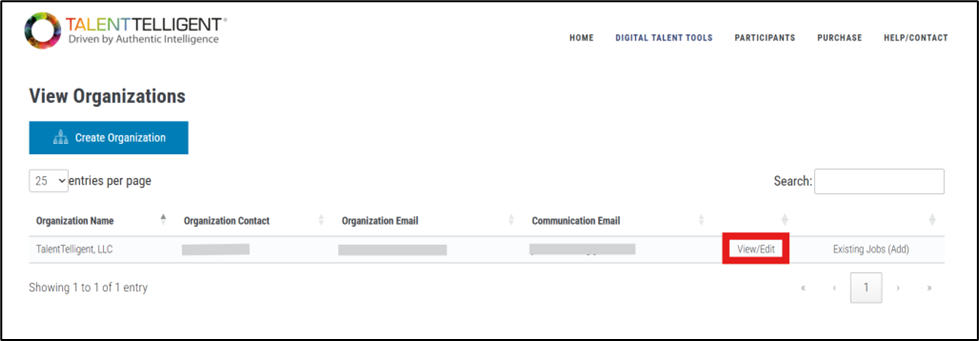
Menu Path: Digital Talent Tools → Organizations → View/Edit.
Instructions:
- After creating an Organization, you can edit or update its details.
- Click View/Edit next to the Organization you wish to update.
- Update any of the fields as needed. All previously entered information is saved for easy editing.
- When finished, click Edit Organization.
The Organization will be successfully updated and saved with your changes.